

mode: "async" — the tick enqueues a run and returns.
Whether the workflow then succeeds is a separate question, and the schedule
reports on it separately.
Setting one up
1. Open the workflow’s menu
In the workflows sidebar, hover the workflow and open its ⋯ menu, then choose Schedule. You need the same permission as editing the workflow — a schedule spends credits later and unattended, so read access is not enough.2. Choose repeating or once
Repeating fires until you turn it off. Once fires a single time at an instant you pick and then retires itself.3. Say how often
For a repeating schedule, pick a shape — every N minutes, every N hours, daily, on chosen weekdays, or on a day of the month — then set the time. Options your plan does not allow are greyed out rather than hidden, so you can see what an upgrade would buy. For a one-time schedule, pick a date and time. Past instants are not offered.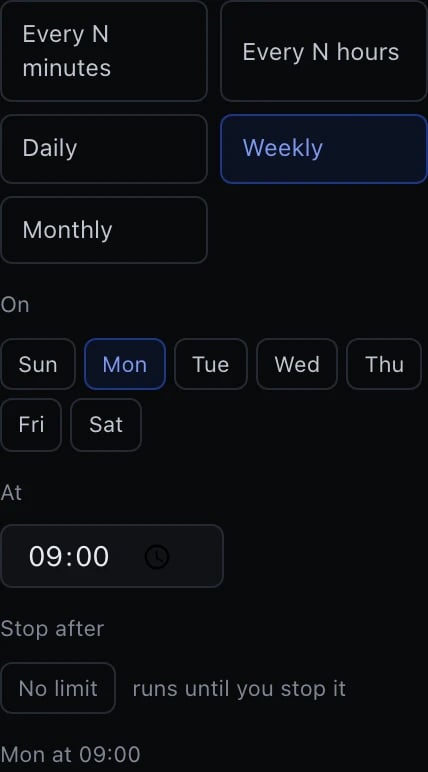
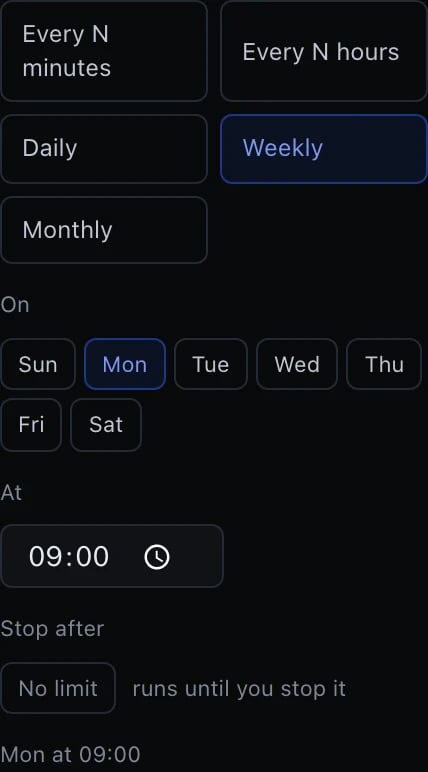
Weekly, with the day picker and a live summary of what it means
4. Optionally stop after N runs
Stop after is No limit by default. Switch it to Limited and enter a number to run “hourly, ten times”.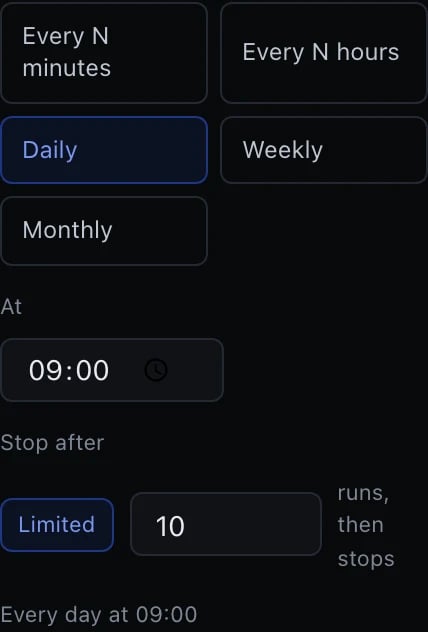
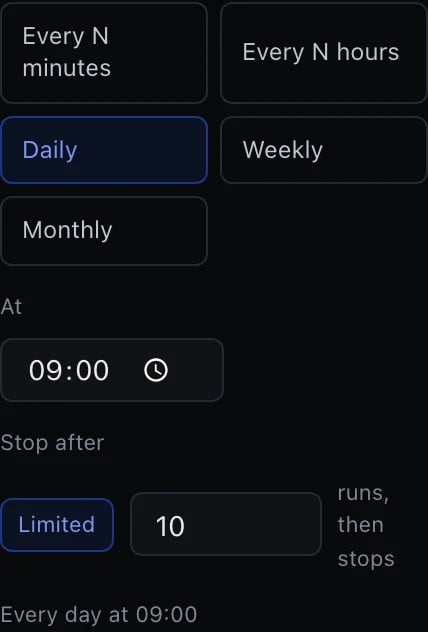
A limited schedule: it stops itself after the count you set
5. Add it
Press Add schedule. The zone shown next to the button is the one the times are read in — your browser’s, unless you are using the API. The schedule is armed immediately and appears in the list at the top of the same dialog.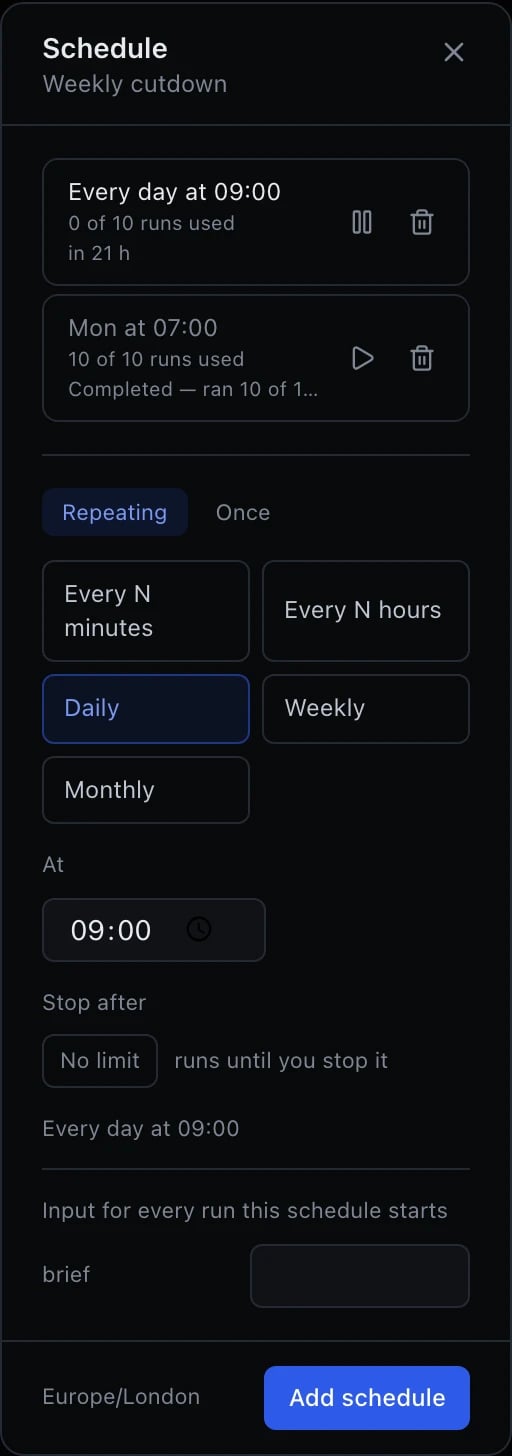
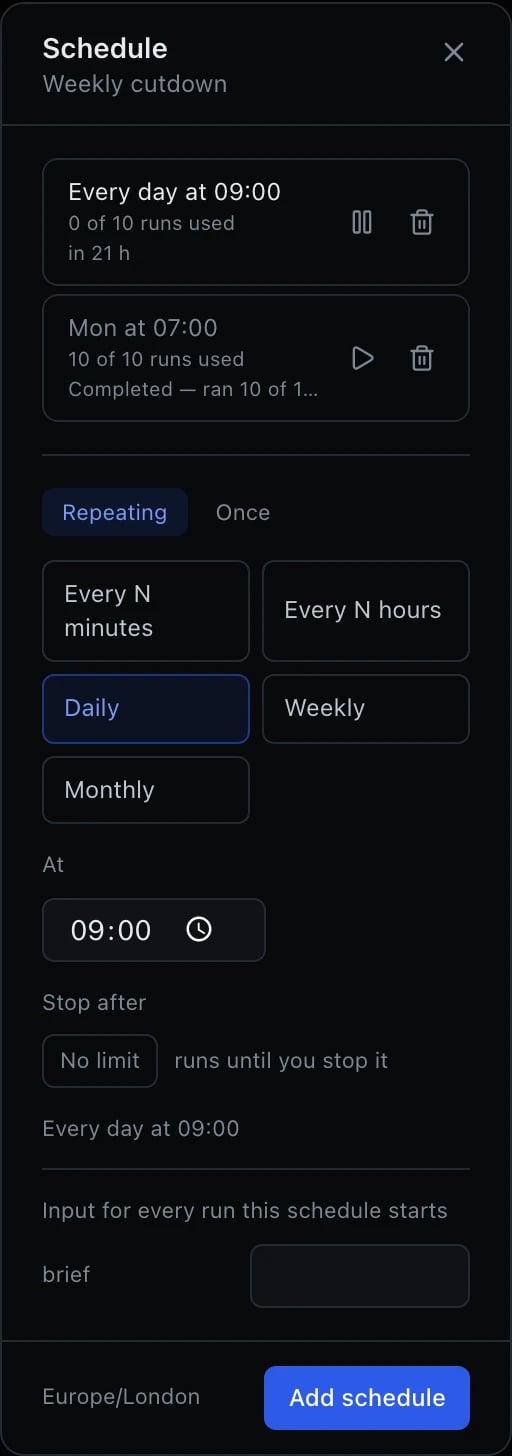
The schedule dialog: one schedule already running, and the form for the next one
brief,
carries no required flag.
The input its runs are given
If the workflow declares inputs, the dialog asks for them — the same fields the run drawer shows, with the same required-ness. Leave a field blank and the key is omitted, so the workflow’s own default applies at run time. That is deliberate: a schedule that copied today’s default would keep it for ever, and changing the workflow next month would leave every older schedule quietly on the old value. A required input with no default has to be filled in — a schedule cannot ask you for it at 03:00, so Add schedule stays disabled until it has one, and says which field it is waiting for. Media inputs take a URL, not an upload: the run fetches it each time it fires.Managing them
Everything lives in the same dialog. Each schedule in the list shows what it does and when it next runs, with two controls:- Pause / Resume — stops it firing without deleting it. Resuming re-checks your plan and quota, so you are told immediately if either now refuses, rather than watching it switch itself off a minute later.
- Delete — removes it. Runs it already started are untouched.
Seeing that it ran
Scheduled runs are ordinary runs. They appear in the workflow’s run history in the sidebar, alongside the ones you started by hand, and cost the same credits. If a schedule stops itself, the workflow is marked in the sidebar list — on every tab, not only under Scheduled. Open the schedule to read why.The two kinds
Every schedule stores an input — the object your
${input.…} bindings read.
It is stored because nobody is awake at 03:00 to type it.
A repeating schedule is built from a shape and a time — every N minutes, every N
hours, daily, on chosen weekdays, or on a day of the month — rather than from a
raw cron expression. The intervals offered are the ones that divide their field
evenly: a five-hour step would fire at 00:00, 05:00, 10:00, 15:00, 20:00 and then
at 00:00 again, a four-hour gap, so it would not mean what it says.
A one-time schedule cannot be set in the past. The picker will not offer an
earlier instant, and a time typed in by hand is refused as well.
Stopping after N runs
A repeating schedule can carry a run limit: “hourly, ten times”. By default there is none, and that is deliberate — an invented ceiling would stop a schedule one morning for a reason nothing on screen explains. The limit counts runs started, not workflows that succeeded. A retry after a failure to start does not spend the allowance; otherwise a provider outage would quietly eat a customer’s ten runs. Reaching the limit retires the schedule the same way a one-time schedule retires: it is completed, not broken, so it is not flagged as a problem. Resuming one that has already spent its allowance is refused withschedule_run_limit_reached — raise the limit or remove it in the same edit and
it resumes. Without that refusal it would fire exactly once more and stop again,
which reads as the resume simply not working.
A schedule also stores a timezone, and stores it rather than resolving it
once. A schedule set to 09:00 in Europe/Berlin stays at 09:00 across the
daylight-saving change, which is what people mean by “every morning”. A schedule
pinned to UTC would appear to drift by an hour twice a year.
What you are allowed to schedule
Two limits apply, and they are different questions with different answers. Does your plan include scheduling? It is available on Creator and above. On a lower plan the scheduling controls are shown but disabled, and say so. Nothing you configure changes it — it is a plan feature. How often may it run? Each plan sets a floor on the interval, and options that fire more often are greyed out rather than hidden, so you can see what an upgrade would buy.
One minute is the hard floor regardless — schedules are swept once a minute.
The floor is measured against the smallest real gap a pattern produces, not
against how it looks: a pattern with a twenty-minute gap in it is a twenty-minute
schedule, even if it only fires three times a day.
A schedule that breaks the floor is refused, never quietly slowed — clamping it
would leave the dashboard reporting one frequency while running another.
Individual members and API keys can also be denied scheduling through a
quota, regardless of the plan. That refusal is
not something an upgrade fixes; ask a workspace administrator.
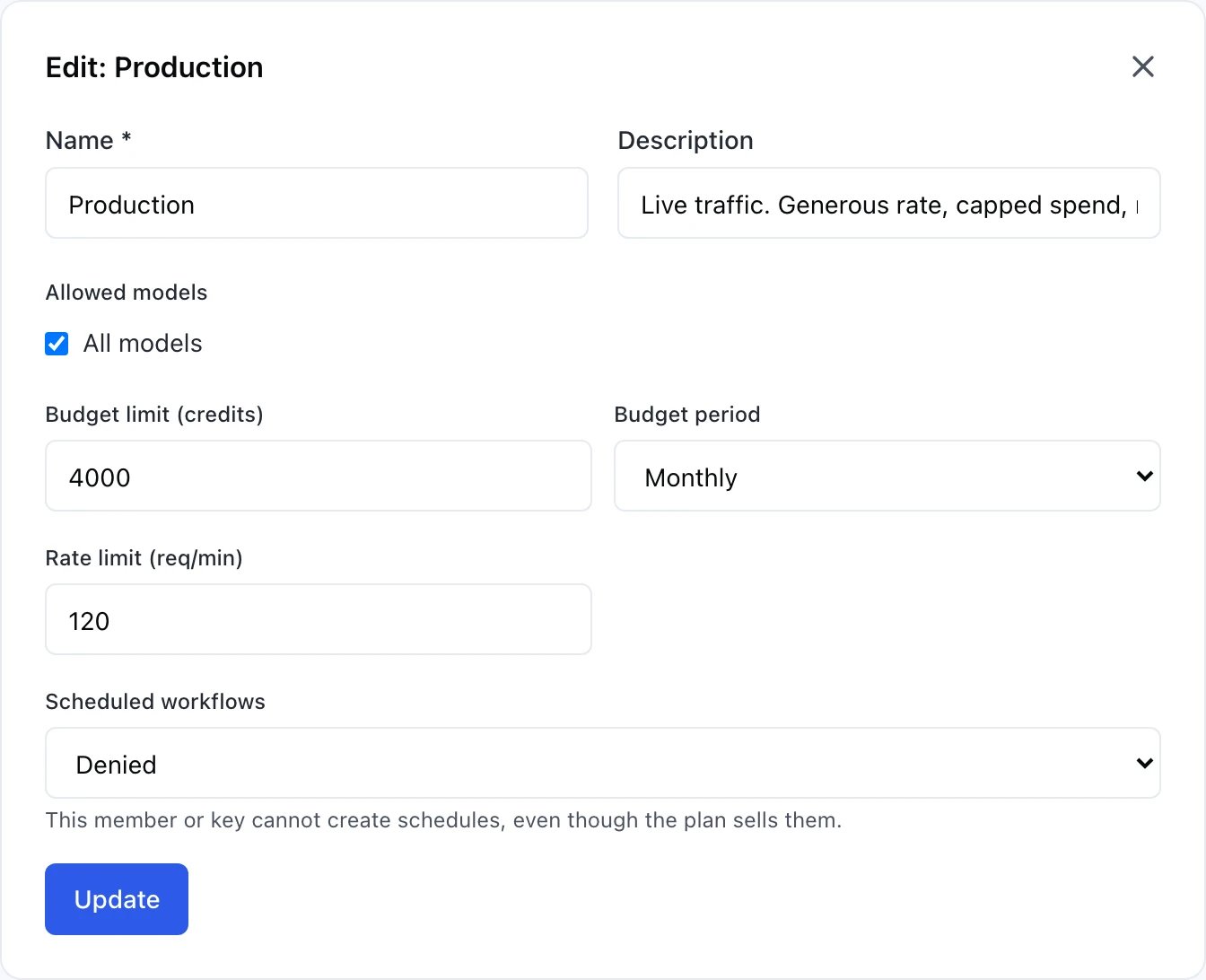
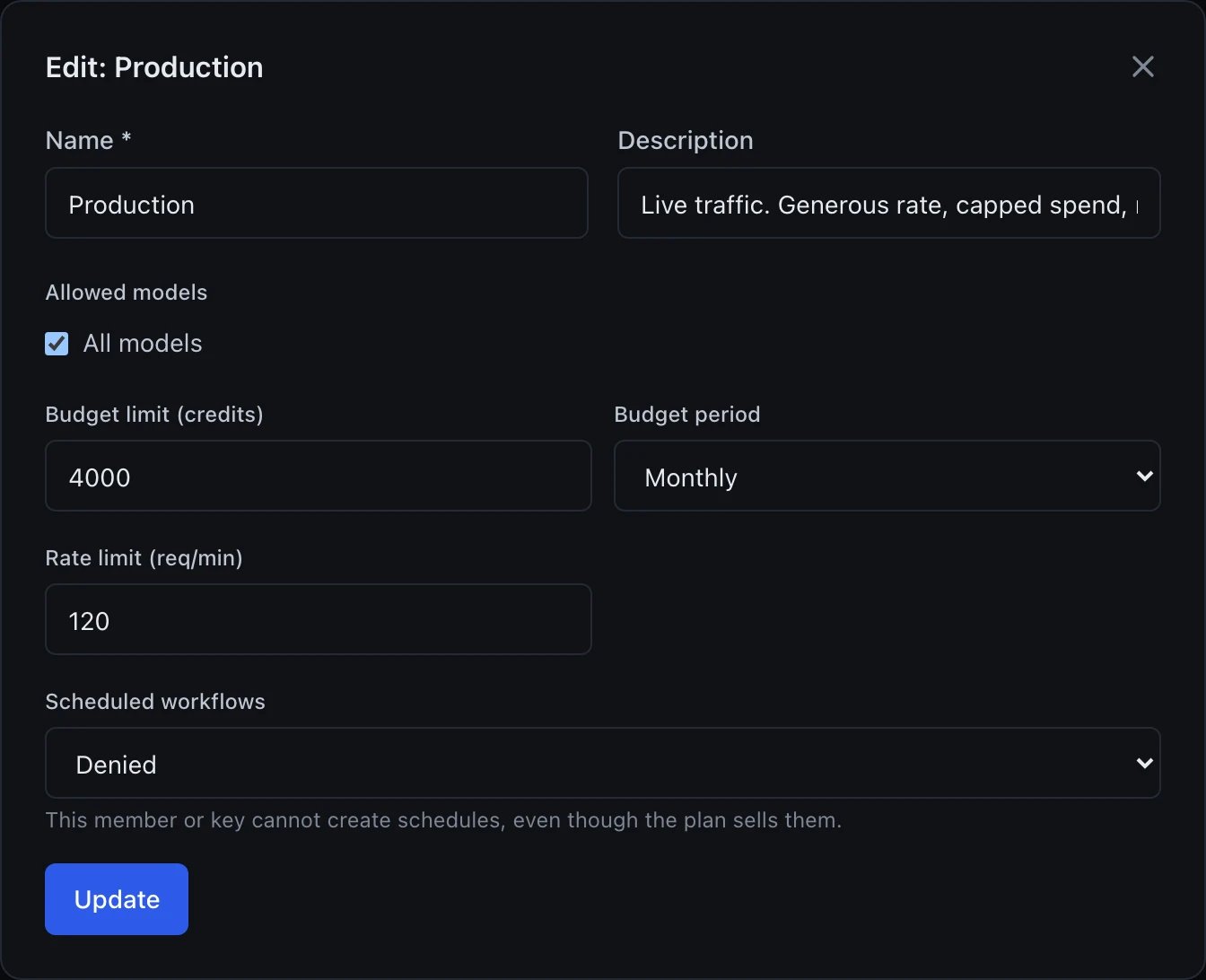
Denying scheduling to one member or key, without touching the plan
What turns a schedule off
Every schedule is re-checked at each tick, not only when it was created. That is deliberate: a schedule outlives the session that made it, and a timer left running after its conditions changed keeps spending credits nobody authorised.
A schedule that stopped for any reason except the last one is marked in the
workflows list itself, on every tab — not only under Scheduled. A stopped
timer is something you should meet where you already are, rather than something to
go looking for. A one-time schedule that simply finished is not marked, because a
mark that fires on success is a mark people learn to ignore.
Retries
A failure to start a run is retried with exponential backoff and jitter, and a retry never lands later than the occurrence that was coming anyway — a daily report that fails at 07:00 retries within minutes, not tomorrow. After five consecutive failures the schedule turns itself off: a timer that fails forever is worse than one that stops, because nobody reads a log and each attempt may be costing a hold. A workflow that fails after it started does not count towards that limit. “We could not start it” and “it ran and failed” are different problems, and only the first is the schedule’s fault.Finding your schedules
The workflows sidebar has a Scheduled tab listing every workflow that has a schedule — yours and ones shared with you. It is a filter across the whole list rather than a third category, so a scheduled workflow still appears under Mine or Shared as well.

The Scheduled tab, with the count of what is in it