

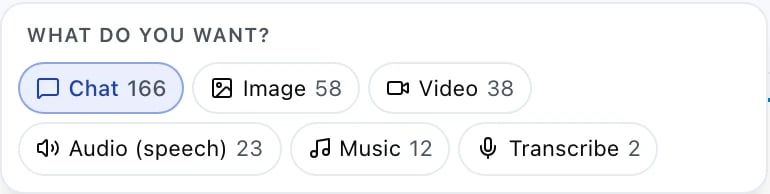
The model picker's first step in Manual mode: pick the output family before picking a model
Chat
Text-in, text-out (or text with images/audio attachments). Supports streaming, tool calls, JSON mode and vision on capable models. Model picker shows every chat-capable model. For vision, attach an image. For PDFs, models that support them read directly; others get auto-converted text + page images.Generate Image
Text prompt → image. Controls: aspect ratio, number of images, style (model-dependent). Models like Nano Banana (Gemini Image) additionally support image edits — attach a source image and describe what to change. Output is stored in GCS, shown inline, and re-attachable to chat messages with one click.Text-to-Speech
Text prompt → MP3/WAV. Controls: voice, speed, format. The audio is streamed back as a binary response (or HTML5 player in the UI).Speech-to-Text
Drop an audio file or record directly in the browser. Output: transcript (with optional segments and word-level timestamps onverbose_json format).
Accepts up to 25 MB audio. Transcript appears inline and is searchable in the chat history.