

The canvas
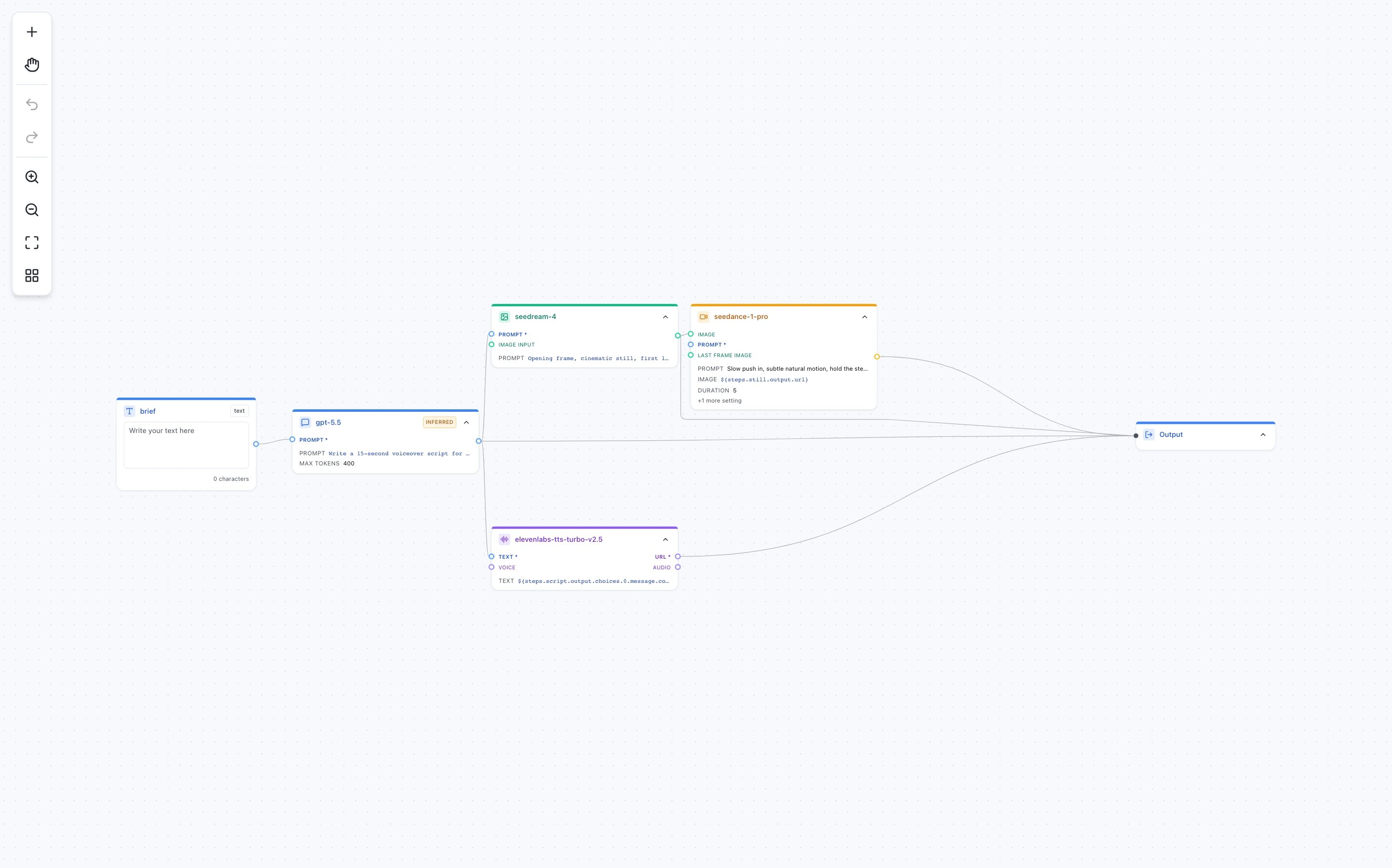
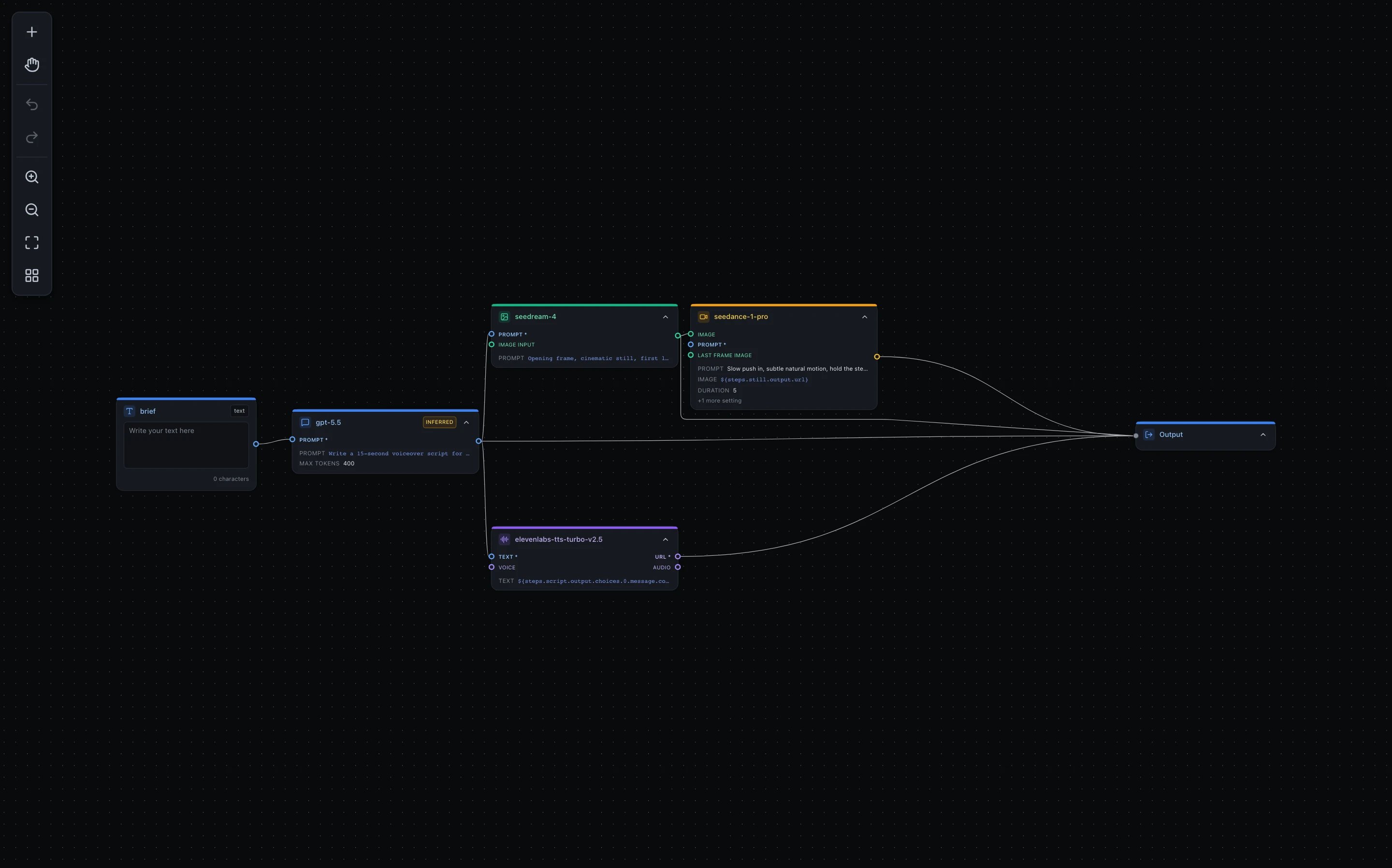
A brief becomes a script, a still image, an animated clip and a voiceover
The little circles on the sides are ports. Drag from one to another to wire a
step’s result into the next step. A wire is not decoration — it is what makes the
downstream step wait for the upstream one, and what puts
${steps.…} in reach.
The toolbar down the left adds a node, switches between panning and box-select,
undoes and redoes, zooms, fits the graph to the screen, and lays it out
automatically.
Configuring a step
Click a card to open the inspector.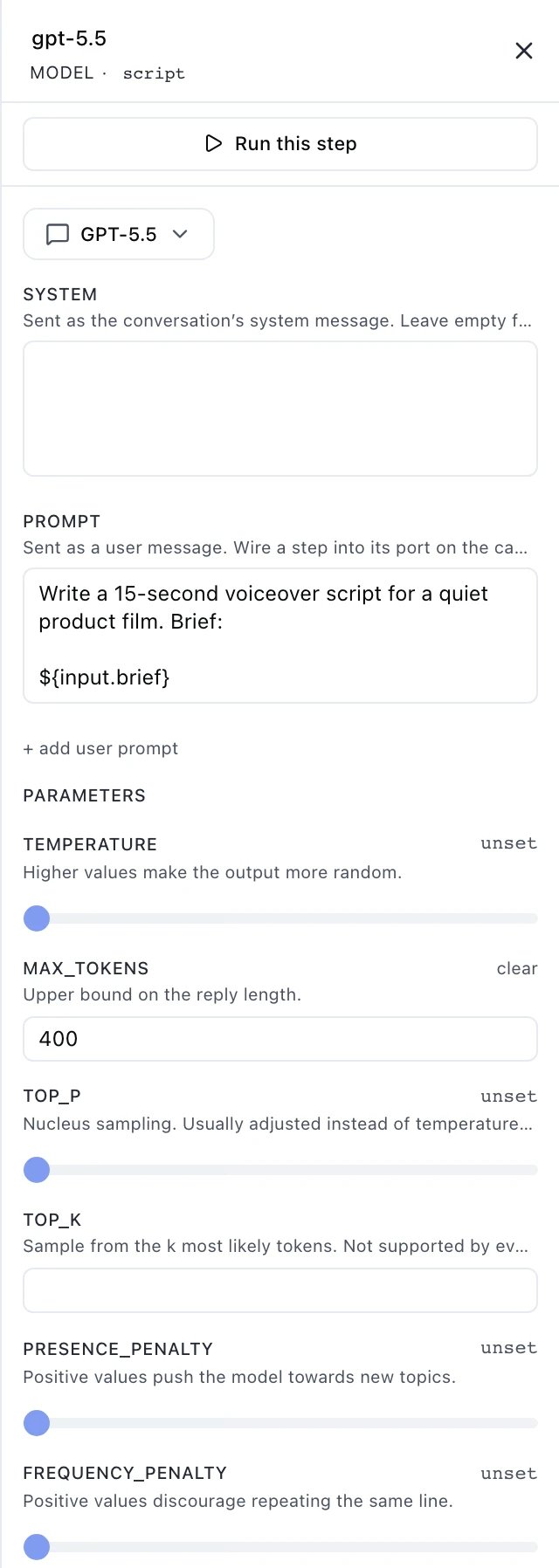
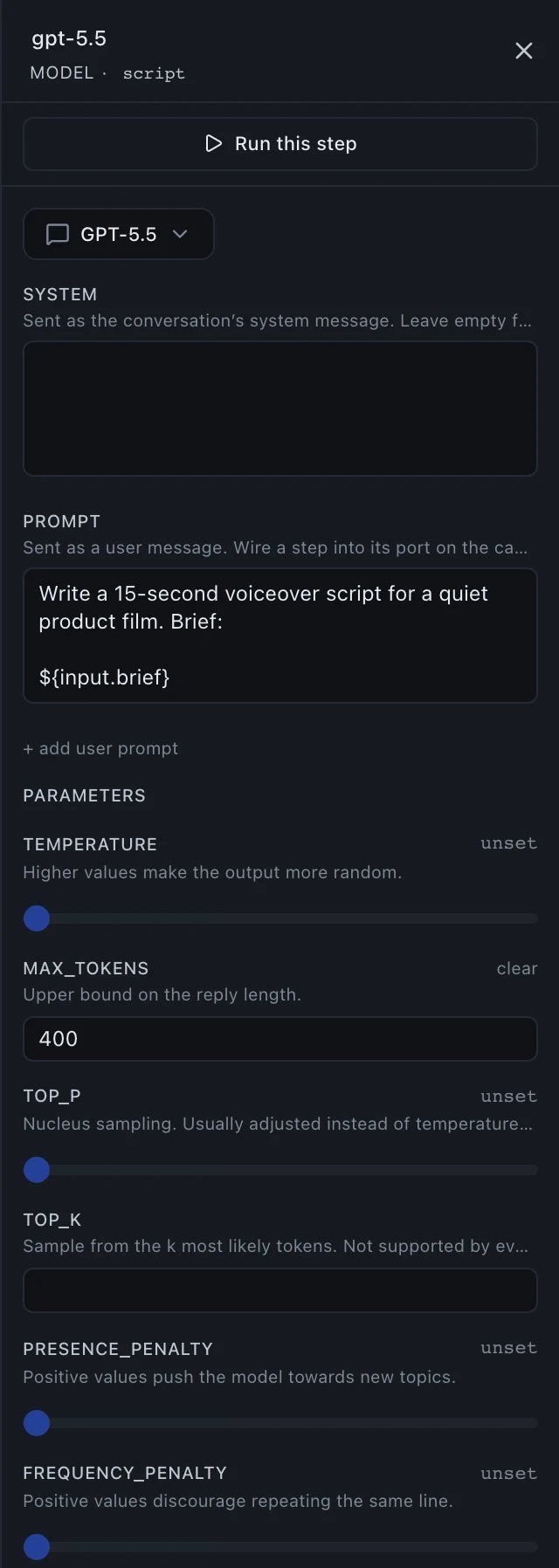
The inspector for a model step, with its prompt bound to a run input
- Parameters left
unsetare not sent. They are not silently defaulted to something on our side — the provider’s own default applies, which is usually what you want. Run this stepruns one step using the results the others already produced. If an upstream step has not run yet, the panel says so rather than running the whole workflow behind your back.INFERREDon a card means the chosen model publishes no parameter schema, so the inspector worked the step’s ports out from the model’s known parameters instead of fetching them — and they may be incomplete. It runs the same; the badge is there so you know to double-check the fields.
Bindings, on the canvas
A binding like${input.brief} or ${steps.script.output.choices.0.message.content} is the
same binding the JSON uses, and the editor shows it as text because
that is what it is — there is no hidden second representation.
One form is worth knowing before you meet it:
| is a fallback: use answer if the step produced one, otherwise results. Handy,
and worth using carefully — a fallback means a broken primary reference still resolves, so
the workflow keeps running and nothing tells you the first half stopped matching anything.
The JSON underneath
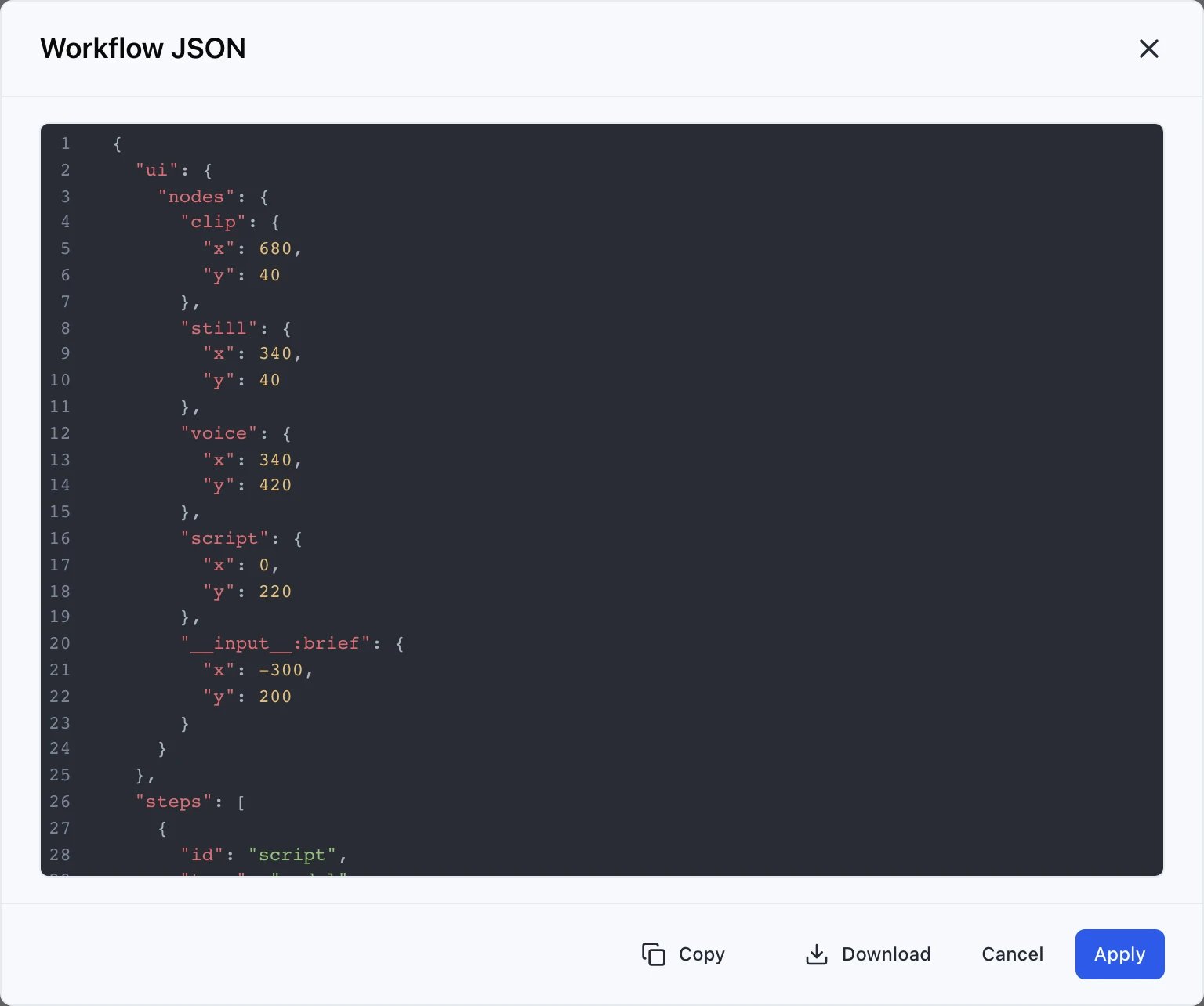
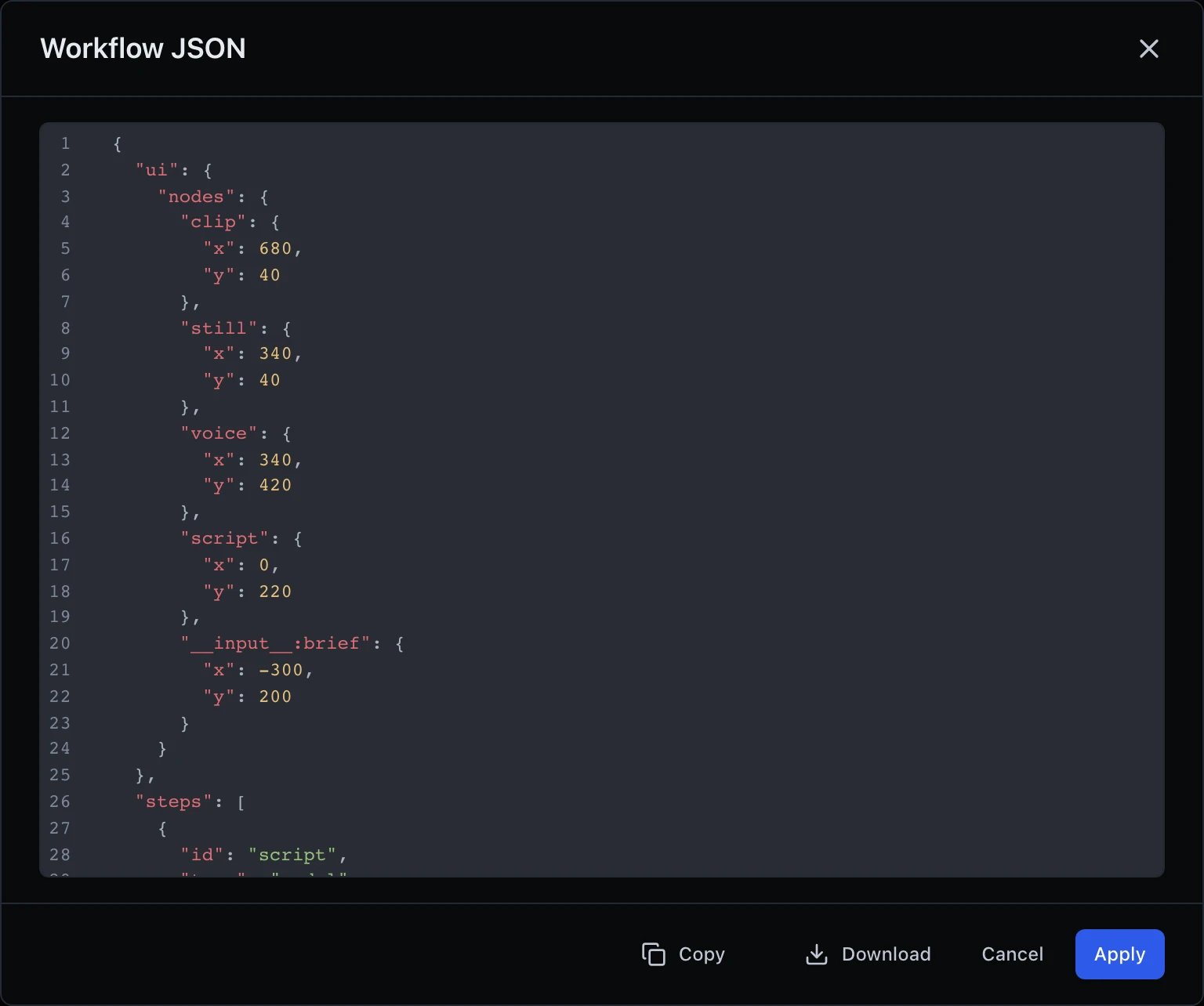
The same workflow as the API sees it
POST /v1/workflows would store. Use it to
learn the format, to copy a workflow into code, or to check what the canvas
actually built.
Saving, versions and runs
Save publishes a new version. The version dropdown beside the workflow name switches between them, and a run always records the version it executed — so opening an old run shows the definition that produced it, not whatever is published now. Your unsaved edits are kept as a draft, and a draft is yours alone: a colleague opening the same workflow sees the published version, not your half-finished change. Run executes the whole workflow with the values in the input cards. Results appear in the run panel at the bottom, and every run is listed under the workflow in the sidebar.Scheduling it
Once a workflow works, it can run on a timer — every weekday at 09:00, or once
at a time you pick.