> ## Documentation Index
> Fetch the complete documentation index at: https://docs.infery.ai/llms.txt
> Use this file to discover all available pages before exploring further.
# Topics and the graph
> Label what a chat is about, see how your chats connect, and pin a topic to steer what a conversation draws on.
Four chats that were really one piece of work look like four unrelated rows in
the sidebar. **Topics** are the labels that tie them together, and the **graph**
is where you see the result.
## Where topics come from
As you chat, the assistant proposes topics it thinks apply — "Rate limiting",
"Prisma migrations", "Onboarding copy". A proposal is only ever a suggestion. It
becomes a real label when you accept it, and nothing is attached to your chats
without you saying so.
Open the suggestions from the **sparkle button** in the sidebar header — it
carries a badge when any are waiting — or from the graph page while it is still
empty. Each one shows the topic, a one-line gloss of what it means, and which
chat prompted it. **Accept** attaches it; **dismiss** turns it down, and it will
not be offered again for that chat.
Accepted topics appear as small chips under the chat's header.
## Making a topic yourself
You do not have to wait to be offered one. Open **Pin topic** on the chat's
header and type a name: matching topics narrow as you type, and if none fit,
**Create "…" and pin it** makes it.

 A typed name is matched against the workspace's existing topics — by name and
by meaning — before anything is created. Type "Rate limiting" where "Rate
limits" already exists and you get the existing one, with a note saying so.
That is deliberate: a dictionary full of synonyms stops connecting the very
chats it exists to connect, and nothing on screen would ever reveal that had
happened.
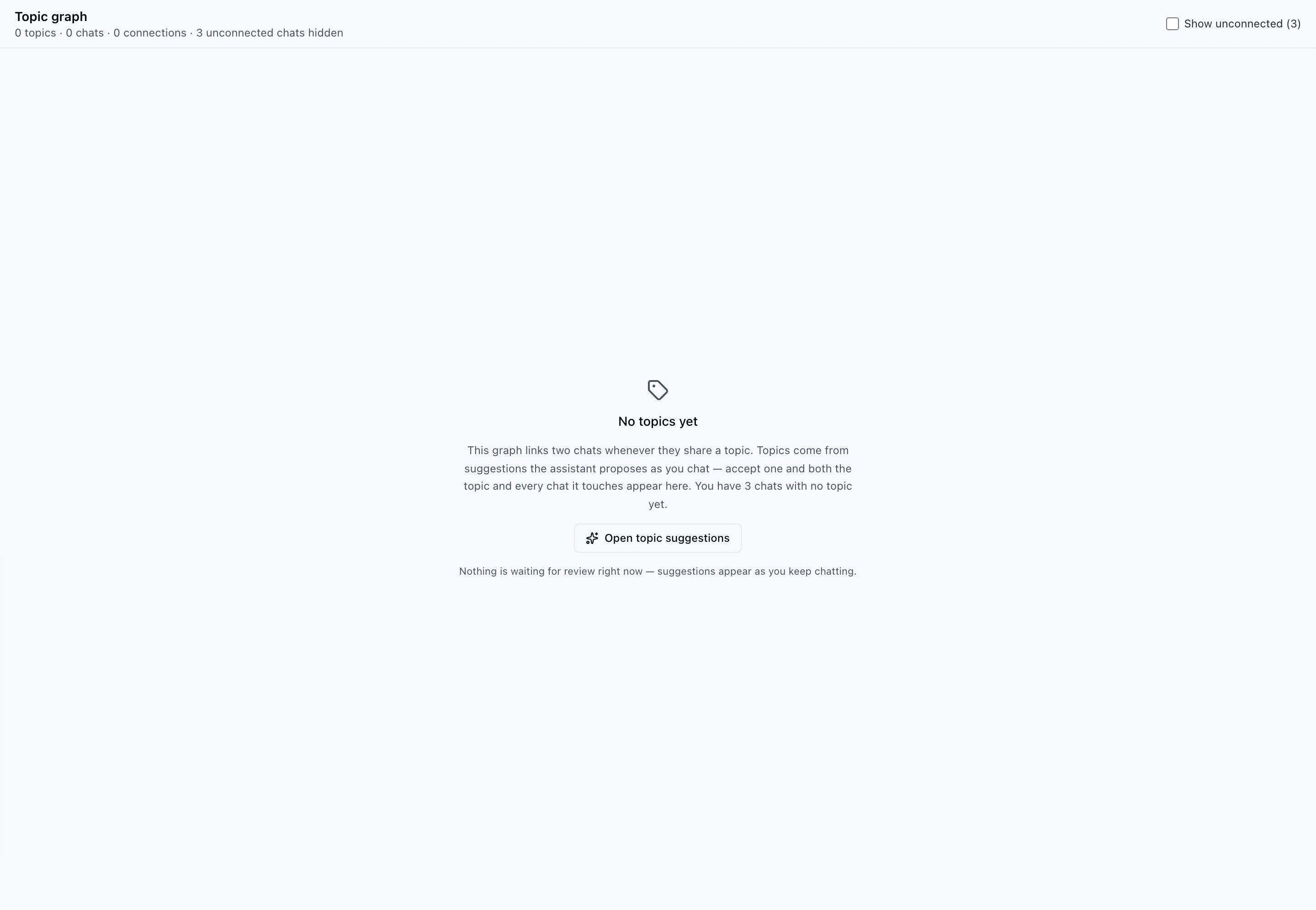
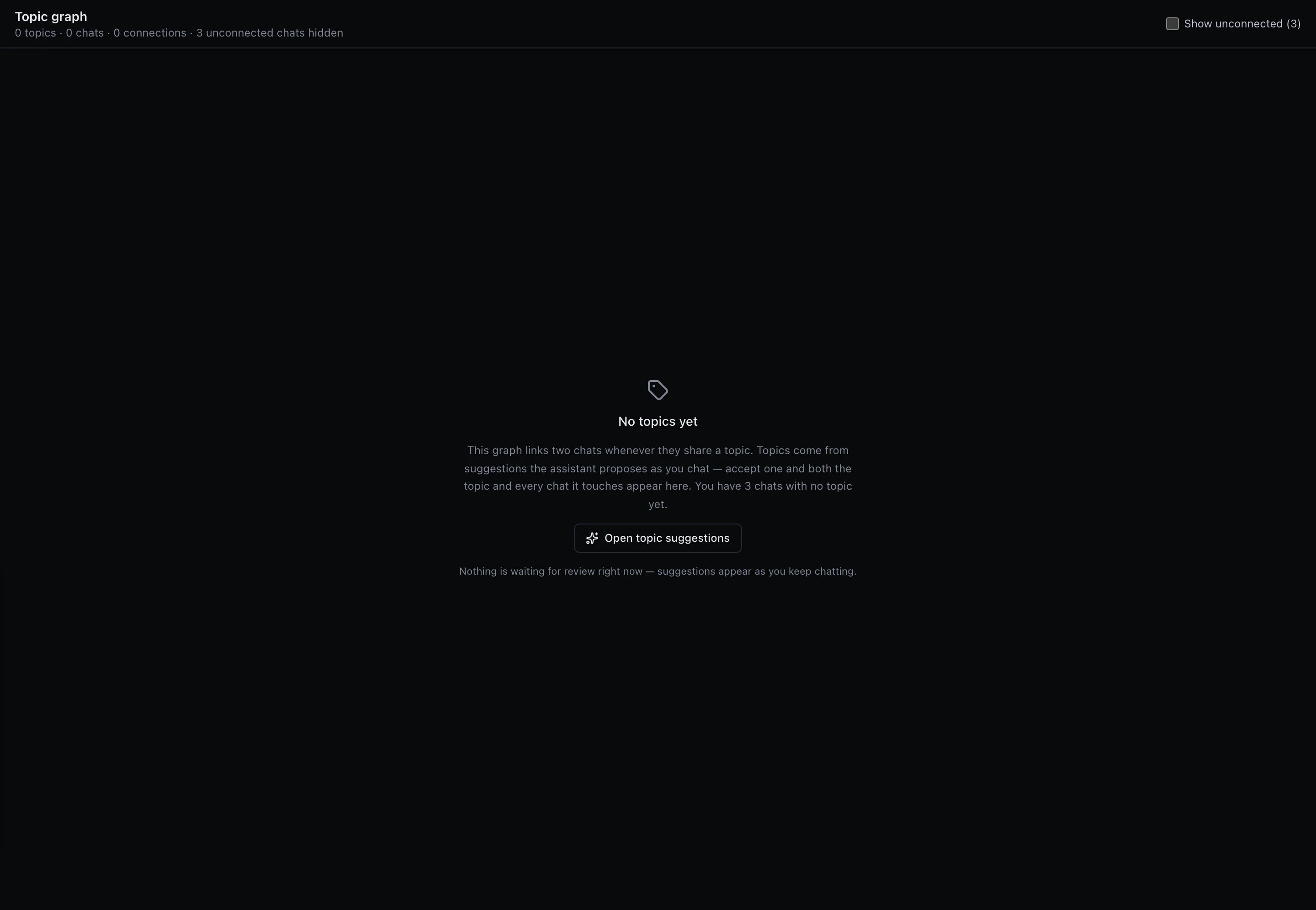
Suggestions arrive as you keep chatting, so a brand-new workspace has none.
This is the ordinary starting state, not a problem to fix — and the graph
says as much rather than showing you an empty canvas:
A typed name is matched against the workspace's existing topics — by name and
by meaning — before anything is created. Type "Rate limiting" where "Rate
limits" already exists and you get the existing one, with a note saying so.
That is deliberate: a dictionary full of synonyms stops connecting the very
chats it exists to connect, and nothing on screen would ever reveal that had
happened.
Suggestions arrive as you keep chatting, so a brand-new workspace has none.
This is the ordinary starting state, not a problem to fix — and the graph
says as much rather than showing you an empty canvas:
 ## The graph
The **network button** in the sidebar header opens the topic graph — "which
chats share a topic".
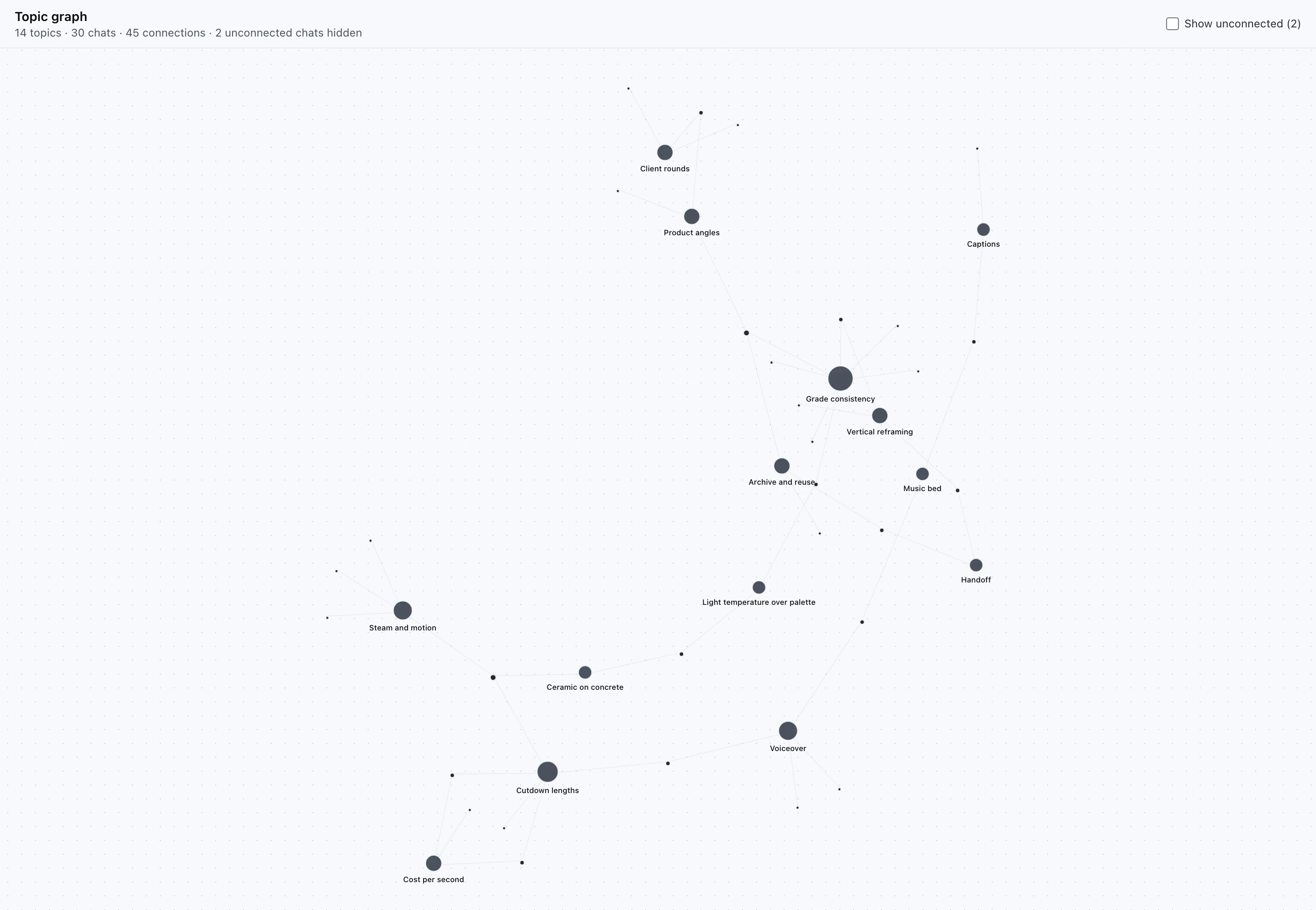
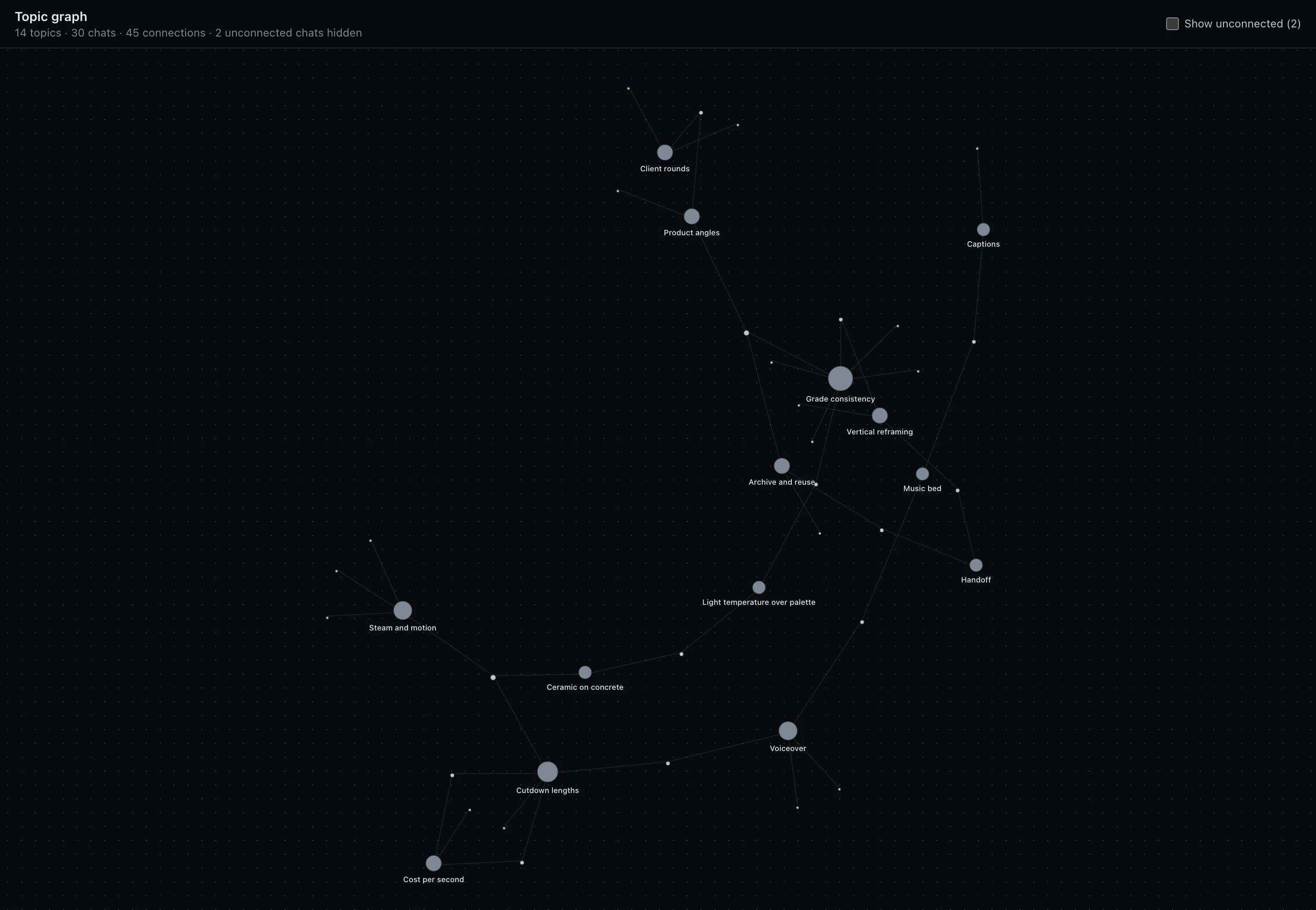
Every dot is either a topic or a chat, and a line means that chat carries that
topic. **Two chats are connected when they share a topic** — there is no direct
chat-to-chat link, which is what keeps the picture readable: clusters form
around subjects instead of everything joining everything.
Dot size is degree: a topic on twelve chats is drawn larger than one on two.
## The graph
The **network button** in the sidebar header opens the topic graph — "which
chats share a topic".
Every dot is either a topic or a chat, and a line means that chat carries that
topic. **Two chats are connected when they share a topic** — there is no direct
chat-to-chat link, which is what keeps the picture readable: clusters form
around subjects instead of everything joining everything.
Dot size is degree: a topic on twelve chats is drawn larger than one on two.
 What you can do on the canvas:
* **Hover anything** — it and everything one step away light up, the rest fades
almost away. This is how you read a dense graph: point at a topic to see its
chats, or at a chat to see its topics.
* **Click a topic** — its chats are listed beside the canvas by name.
* **Click a chat** — opens it.
* **Drag any dot** — the neighbours follow, then settle. Useful for pulling a
cluster apart to look inside it.
What you can do on the canvas:
* **Hover anything** — it and everything one step away light up, the rest fades
almost away. This is how you read a dense graph: point at a topic to see its
chats, or at a chat to see its topics.
* **Click a topic** — its chats are listed beside the canvas by name.
* **Click a chat** — opens it.
* **Drag any dot** — the neighbours follow, then settle. Useful for pulling a
cluster apart to look inside it.
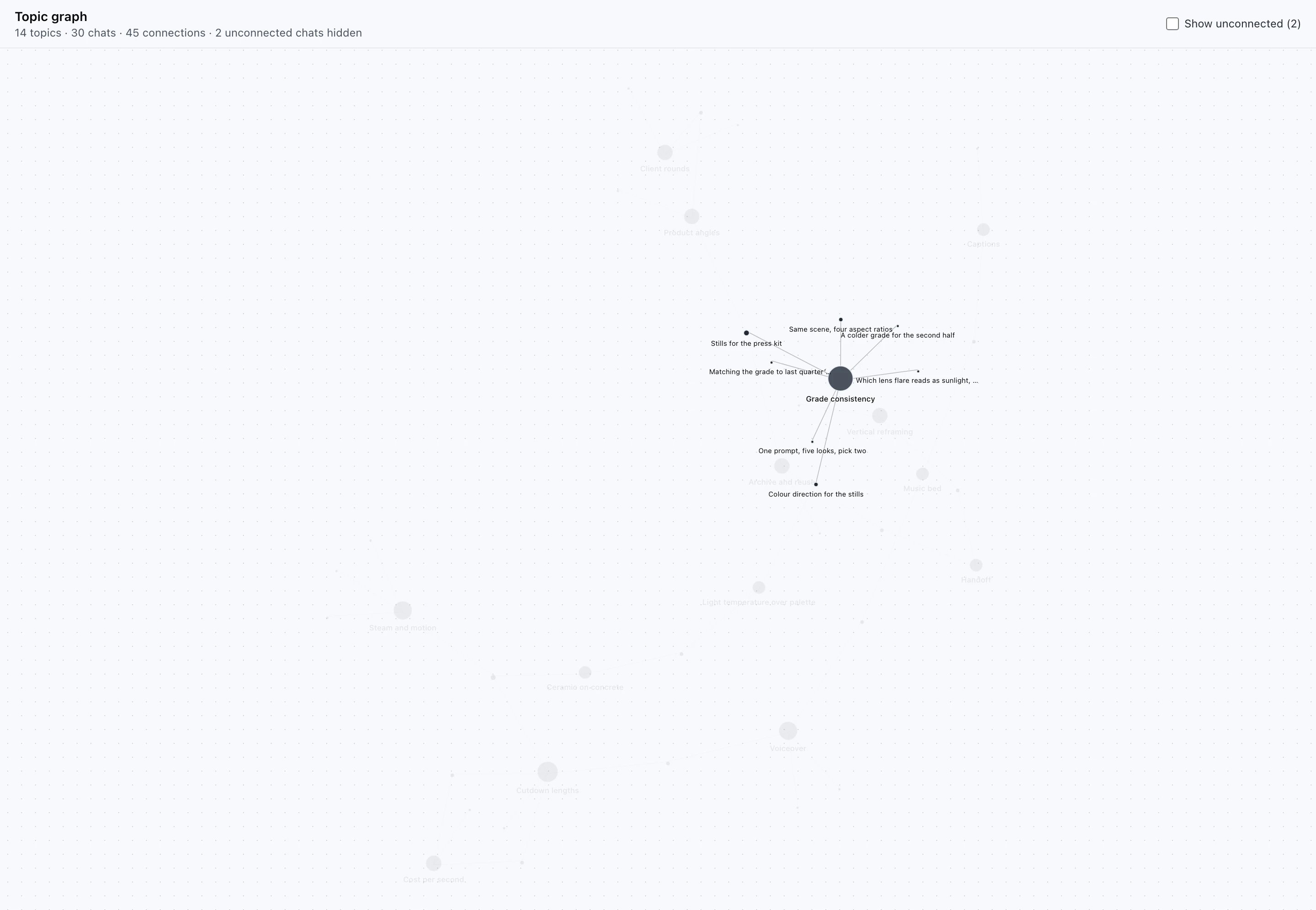
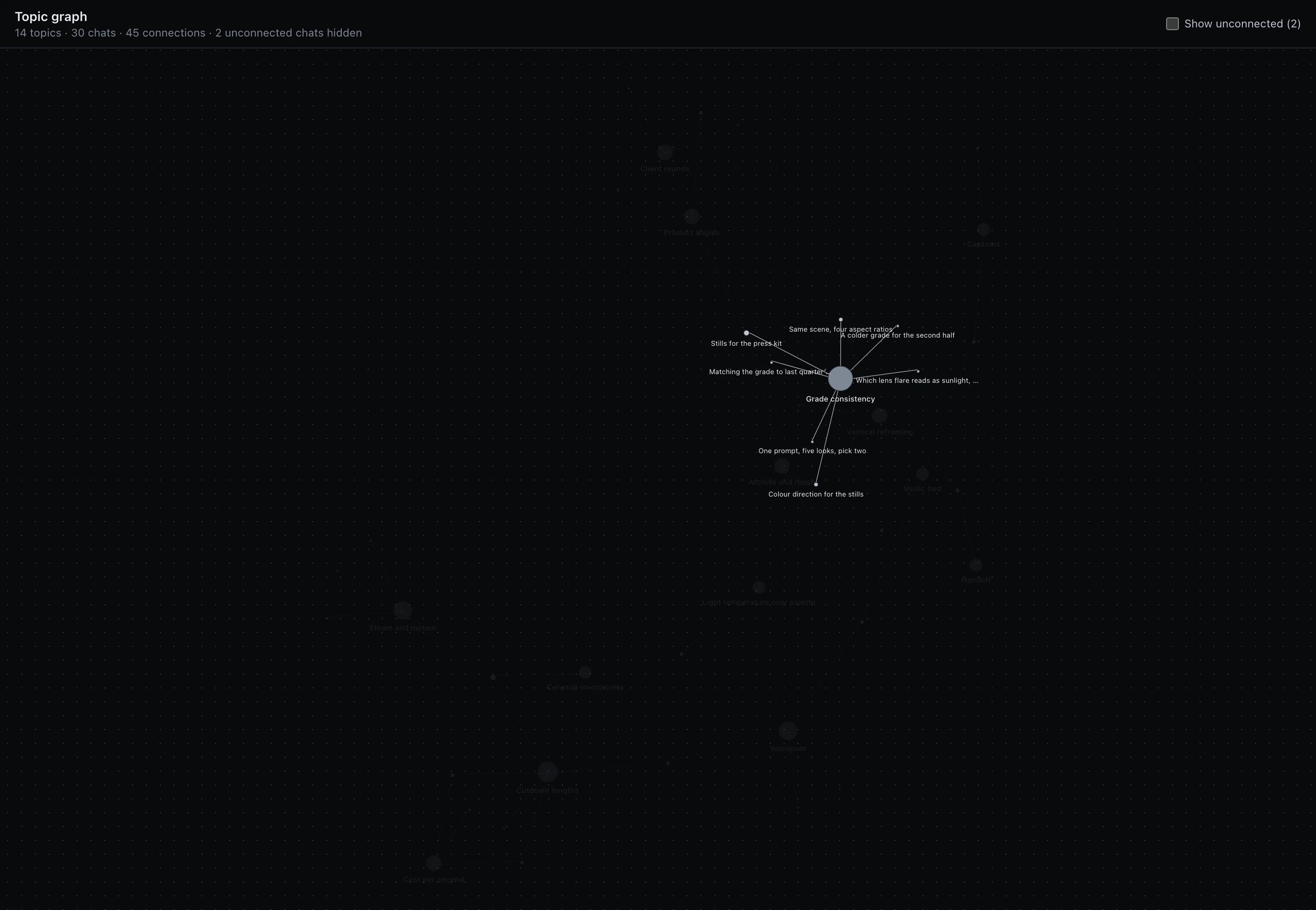 The line under the title always states the whole picture — "4 topics · 7 chats ·
9 connections" — and chats carrying no topic at all are hidden behind **Show
unconnected**, with their number shown either way. On a very large graph the
page draws the most connected part and says in a banner exactly how much it left
out. It never quietly shows you less than it has.
## Pinning a topic to a chat
Recall normally follows resemblance: the assistant pulls in passages that look
like what you just typed. That misses the case where you *know* an old thread is
relevant even though nothing you are about to write resembles it.
A **pin** says so explicitly. On the chat's header, use **Pin topic** to pick
one, or click a chip that is already there. From then on, that chat's recall
reserves part of its budget for material from chats carrying that topic.
Two things are worth understanding about what a pin does:
* **It reserves, it does not restrict.** A pin can claim at most two of the five
recall slots, and only if there is anything worth pulling. Everything else
continues to work exactly as before, and a forgotten pin can never make the
assistant blind to the rest of your history.
* **It lowers the bar, it does not remove it.** A pin is evidence of relevance
the model cannot see for itself, so pinned material is admitted on weaker
resemblance than usual — but still has to resemble the conversation. Pinning
"Salon renovation" will not drag planters into a question about Kubernetes.
Anything recalled through a pin is marked **pinned** in the "Recalled N items"
panel, so you can always tell what arrived because you asked for it.
### Unpinning
Click a pinned chip to unpin. The topic **stays on the chat** — unpinning only
stops it steering recall, so the chat keeps its label and stays where it is in
the graph.
To take the topic off the chat entirely, use the **×** on the chip. That
deletes the link and stops the assistant proposing that topic for this chat
again — the topic itself stays in the workspace, on every other chat carrying
it.
Renaming and merging topics is not possible yet.
### What a pin cannot do
A pin only reaches what you could already read. Pinning a topic whose chats live
in a `Project only` project, from a chat outside it, brings back nothing. That
is deliberate: a control that widened access would be a way around project
isolation. See [Memory and context](/playground/memory-and-context).
The line under the title always states the whole picture — "4 topics · 7 chats ·
9 connections" — and chats carrying no topic at all are hidden behind **Show
unconnected**, with their number shown either way. On a very large graph the
page draws the most connected part and says in a banner exactly how much it left
out. It never quietly shows you less than it has.
## Pinning a topic to a chat
Recall normally follows resemblance: the assistant pulls in passages that look
like what you just typed. That misses the case where you *know* an old thread is
relevant even though nothing you are about to write resembles it.
A **pin** says so explicitly. On the chat's header, use **Pin topic** to pick
one, or click a chip that is already there. From then on, that chat's recall
reserves part of its budget for material from chats carrying that topic.
Two things are worth understanding about what a pin does:
* **It reserves, it does not restrict.** A pin can claim at most two of the five
recall slots, and only if there is anything worth pulling. Everything else
continues to work exactly as before, and a forgotten pin can never make the
assistant blind to the rest of your history.
* **It lowers the bar, it does not remove it.** A pin is evidence of relevance
the model cannot see for itself, so pinned material is admitted on weaker
resemblance than usual — but still has to resemble the conversation. Pinning
"Salon renovation" will not drag planters into a question about Kubernetes.
Anything recalled through a pin is marked **pinned** in the "Recalled N items"
panel, so you can always tell what arrived because you asked for it.
### Unpinning
Click a pinned chip to unpin. The topic **stays on the chat** — unpinning only
stops it steering recall, so the chat keeps its label and stays where it is in
the graph.
To take the topic off the chat entirely, use the **×** on the chip. That
deletes the link and stops the assistant proposing that topic for this chat
again — the topic itself stays in the workspace, on every other chat carrying
it.
Renaming and merging topics is not possible yet.
### What a pin cannot do
A pin only reaches what you could already read. Pinning a topic whose chats live
in a `Project only` project, from a chat outside it, brings back nothing. That
is deliberate: a control that widened access would be a way around project
isolation. See [Memory and context](/playground/memory-and-context).